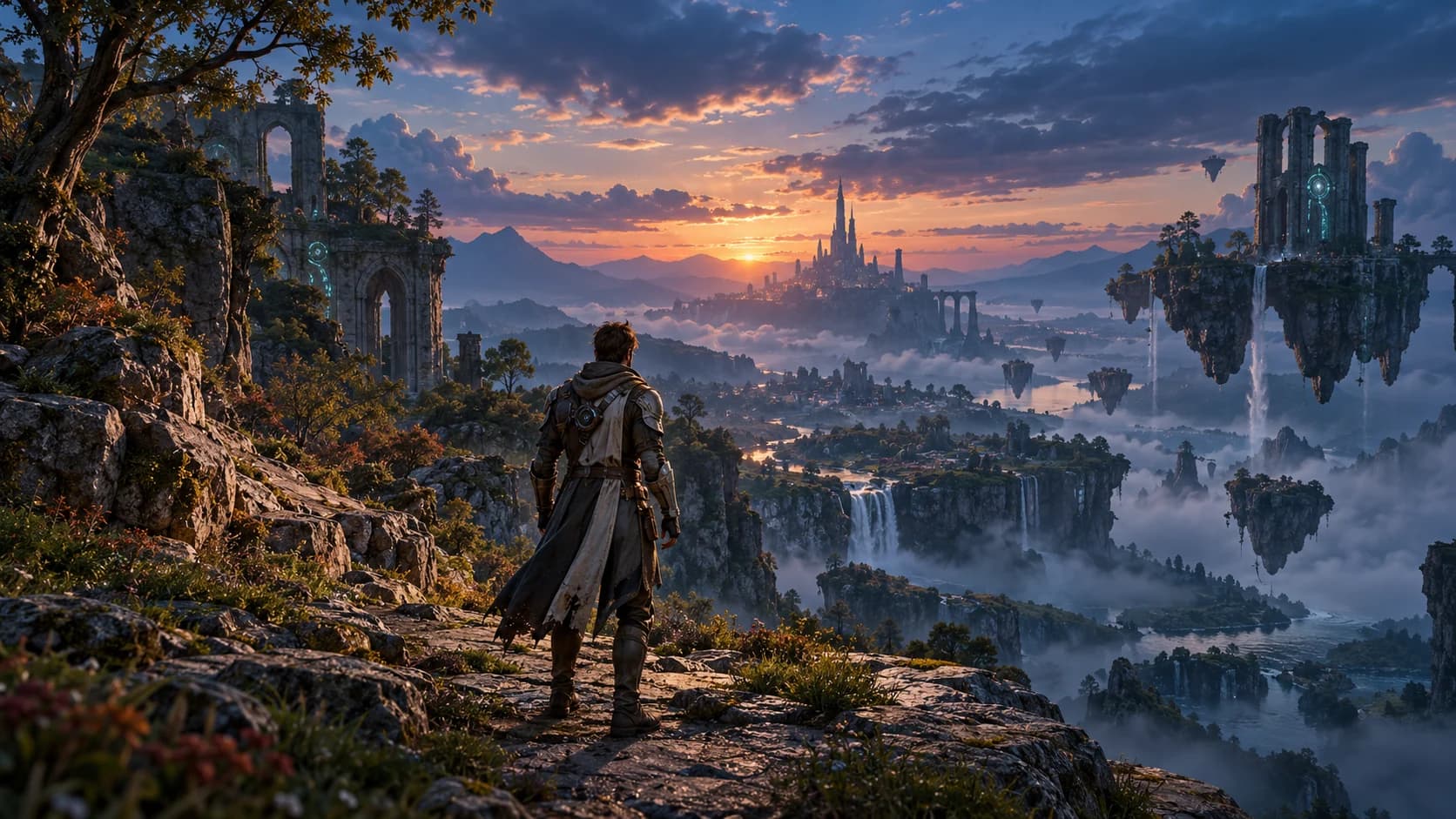
Obsidian
MinimalPremium minimal dark. Hairline frames, quiet accents, lots of breathing room.
Pick a look, tweak it, and paste one URL into OBS. No design skills or OBS know-how needed.
Six themes, each with its own layout, type and motion, for every scene of your stream.
Your name, handles, colors and text. Drag things around; the preview is exactly what OBS shows.
Publish, copy one URL per scene into a Browser Source. Updates reach OBS by themselves.
Open one in the editor and make it yours.
Premium minimal dark. Hairline frames, quiet accents, lots of breathing room.
Restrained cyan and violet neon. Glowing frames, soft breathing light.
Atmospheric gradients and soft glow. Airy, centered and calm.
Black and white editorial. Serif headlines, square corners, no color at all.
Futuristic gaming HUD. Bracket frames, segmented bars, glitchy alerts.
Cinematic with dark red accents. Credits-style titles and slow fades.
Webcam frames, titles, socials, alerts, goals, and Starting Soon, BRB and Ending scenes.
Edit, press Update, and every open Browser Source picks up the new version.
1920 × 1080, 1280 × 720 or 1080 × 1920; every theme has a layout for each.
Smooth, GPU-friendly animations that calm down for viewers who prefer less motion.
Your overlay opens with a private edit link. Keep it safe, and download a backup.